
Usage
Pinggy uses the reverse tunneling feature provided by the secure shell (ssh) program. You can use any ssh program as long as it provides the reverse tunneling feature. However, we recommend using openssh whenever possible.
Pinggy uses different features of the ssh protocol to provide functionality such as web debugging, header manipulation, authentication, etc.
We directly use the options provided by the ssh command to set up the tunnel and enable live debugging.
Tunnel tokens and a few keywords are sent as the username. A few command-line options configure different tunnel options.
Let’s start with basic SSH options:
SSH Usage
Detailed usage is available on the ssh man page at https://man.openbsd.org/ssh
ssh -p443 -R0:<localhost>:<localport> [-R<domain>:0:<localhost>:<localport>[ -R<domain>:0:<localhost>:<localport>...]] [<token/keyword/tunneltype>@]free.pinggy.io <remote options>
| -R [remote_address:]remote_port:local_address:local_port |
|
| | Expose a local service running on `local_address:local_port` to `remote_address:remote_port`. While there are multiple variations of reverse tunneling, Pinggy supports only this specific version. By default, Pinggy ignores the provided remote port and assigns a domain name and port based on the subscription plan and tunnel type. Pinggy supports two types of reverse forwarding: Default Forwarding:
By default, Pinggy requires a single port to forward incoming requests-this is known as default forwarding. In this case, users should not provide any remote_address. Pinggy will forward all requests that do not match any domain forwarding rules. - Only one default forwarding is allowed per session.
- Providing multiple default forwardings is not supported, and the behavior is undefined.
Domain Forwarding:
Pinggy supports multiple port forwardings using domain forwarding. In this mode, users must provide a valid domain name (associated with their token) as the remote_address. - Multiple domain forwardings are allowed. However, they are not effective without a default forwarding.
- Domain forwarding is particularly useful with wildcard domains.
- This mode is not supported for
TCP and UDP tunnels.
|
| -p port |
|
| | Remote server port. By default, ssh servers listen on port 22. However, Pinggy servers listen on 443 to overcome firewall restrictions in some networks. So, use -p443 when connecting to a Pinggy server. |
| |
| -t |
|
| | Force pseudo-terminal allocation. By default, the ssh command requests a pseudo-terminal as long as no remote option is provided. Pinggy uses a pseudo-terminal to provide a rich interface like this.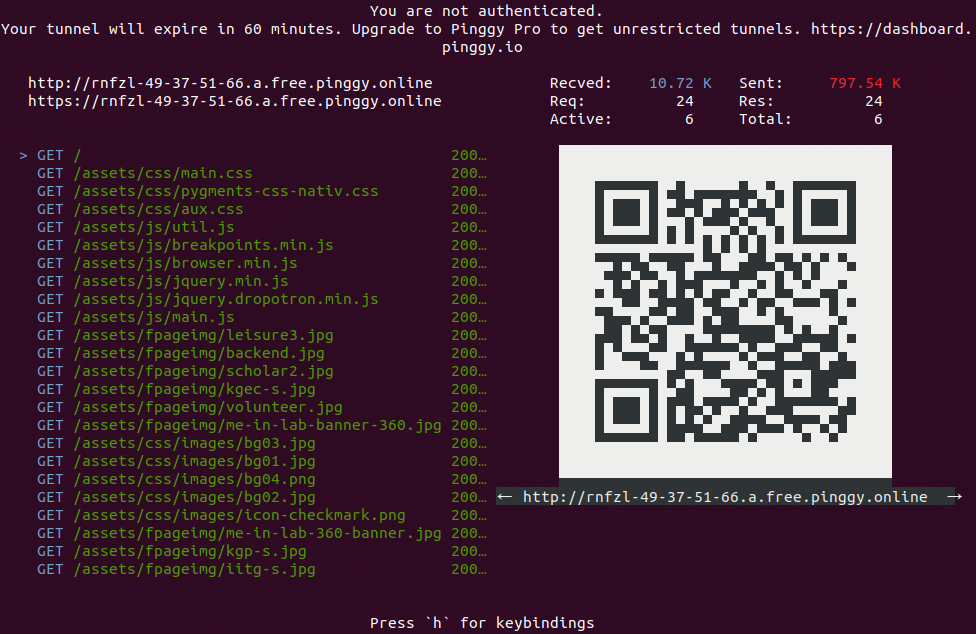 You can disable the rich CLI using You can disable the rich CLI using -T. |
| |
| -T |
|
| | Disable pseudo-terminal. Pinggy works without a pseudo-terminal and provides basic information. |
| |
| -N |
|
| | Disable remote command execution. Pinggy uses remote command execution to enable advanced functionalities including web debugging, header manipulations, and many more. It is not recommended to use this flag. |
| |
| -L localport:localhost:4300 |
|
| | Enable local forwarding. It enables the ssh client to listen on localport and forward incoming connections to the remote port. Pinggy only allows forwarding to port 4300, where it provides the web debugging UI. |
Username for SSH
Pinggy does not require any username or authentication to start the tunnel, as it does not provide any access to the server. However, this information goes to the server before ssh can establish the connection. So, we use the username to send the tunnel token and other keywords to the server. The token can be found in <dashboard.pinggy.io>. The token and keywords are separated by +. Pinggy has the following keywords:
1. http/tcp/tls/tlstcp
These keywords set the tunnel type. The default tunnel is the http type.
a) http
The http tunnel works only with an HTTP server. Pinggy provides links for both HTTP and HTTPS. However, it terminates traffic at the server and reads it to provide live debugging and other functionality. Any http tunnel comes with the following functionality.
- Live Header Manipulation
- Basic Authentication
- Key Authentication
- IP White Listing
More about these functionalities later.
A basic http tunnel can be started using
ssh -R0:localhost:<localport> free.pinggy.io
ssh -R0:localhost:<localport> <token>@pro.pinggy.io
b) tcp
The tcp tunnel is the simplest form of tunnel. It simply forwards incoming data without doing any kind of processing. The tcp tunnel also provides a server port. All tcp tunnels also come with IP White Listing functionality.
A basic tcp tunnel can be started using
ssh -R0:localhost:<localport> tcp@free.pinggy.io
ssh -R0:localhost:<localport> <token>+tcp@pro.pinggy.io
c) tls
A tls tunnel is equivalent to a tcp tunnel with only one exception: the server does not allocate any TCP port. Instead, it forwards incoming SSL/TLS traffic based on the server name indication or SNI. Instead of terminating TLS/SSL traffic in a tls tunnel, a Pinggy server forwards the traffic as it is to the client.
A basic tls tunnel can be started using
ssh -R0:localhost:<localport> tls@free.pinggy.io
ssh -R0:localhost:<localport> <token>+tls@pro.pinggy.io
From a privacy perspective, a tls tunnel is the most private tunnel because Pinggy cannot look at the tunnel content. It also makes things harder for the client, as it has to handle everything related to TLS.
d) tlstcp
A tlstcp tunnel is a tcp tunnel with an option to use a tls wrapper for the visitor. It provides a TCP port where the Pinggy server listens for incoming TCP connections and forwards the content as it is to the client. It also provides a tls URL, where it listens on port 443, terminates the incoming SSL connection, and forwards the plain text content to the client.
A basic tlstcp tunnel can be started using
ssh -R0:localhost:<localport> tlstcp@free.pinggy.io
ssh -R0:localhost:<localport> <token>+tlstcp@pro.pinggy.io
tlstcp is similar to a tcp tunnel, with the added convenience that visitors can connect to the Pinggy server with an SSL connection.
It allows a visitor behind a firewall to connect to a TCP-based service hosted on Pinggy.
Passing multiple tunnel types is not recommended. The behavior is undefined.
2. qr/aqr
Pinggy provides an option to display a QR code with the URL in the terminal. The qr key displays a smaller Unicode-based QR code in the terminal, while aqr draws a larger ASCII-only QR code. Start an http tunnel with a QR code as follows:
ssh -R0:localhost:<localport> qr@free.pinggy.io
ssh -R0:localhost:<localport> <token>+qr@pro.pinggy.io
3. auth
By default, Pinggy tries to start a tunnel without any authentication. However, it may not always work due to limitations in some SSH client implementations (e.g., Dropbear). Use the auth keyword to stop this behavior. With this keyword, a client may ask for a password; please provide 0000 (or any string).
4. force
Pinggy provides the force keyword to forcefully disconnect an existing tunnel with the same token before creating a new connection. Use it as follows:
ssh -R0:localhost:<localport> <token>+force@pro.pinggy.io
It is useful only with token-based connections.
Multiple Port Forwarding
Pinggy supports multiple port forwarding via Domain Forwarding. This feature is available only for Pro tunnels. If a token has multiple domain names associated with it (e.g., via a wildcard custom domain), multiple port forwarding can be used to route requests for different domains to different ports.
Let’s assume that *.example.com is registered with the token tkn. We want to forward requests to register.example.com to port 8080, while the rest of the requests should be forwarded to port 80. We can use the following ssh command to set up these forwardings:
ssh -R0:localhost:80 -Rregister.example.com:0:localhost:8080 tkn+qr@pro.pinggy.io
Command-line Options
Pinggy has options to configure live HTTP header manipulation, HTTP authentication, and IP whitelisting from the command line.
The syntax for a command-line option is as follows:
command[:CommandOption1[:CommandOption2...]]
Here is the list of command-line options.
a:HeaderName:HeaderValue
It will add a header with HeaderName and HeaderValue to every HTTP request. You can add as many headers as you want.
r:HeaderName
It will remove every header with the header name HeaderName from the HTTP request. Redundant remove-header commands are silently ignored.
u:HeaderName:HeaderValue
It is a combination of the remove-header and add-header commands. It will remove every header with the header name HeaderName and add a new header with the header name HeaderName and value HeaderValue.
2. Basic Authentication
Pinggy supports basic authentication for visitors. It is username-password-based authentication that a browser asks for when visiting the website. The syntax to set basic authentication is as follows:
b:username:password
It never sends basic auth to the client.
3. Key Authentication
Key authentication is a mechanism where a visitor sends an Authorisation header with the value Bearer <key>. The request will be passed to the client only if the key matches the provided one. The syntax to set the key is as follows:
k:key
Basic authentication and key authentication can be used together.
4. IP White Listing
IP White Listing is a feature where visitors from certain IP addresses are allowed to connect. It ignores requests from other IP addresses without responding.
The syntax to set the IP whitelist is as follows:
w:[IP1[,IP2[,IP3..]]]
5. Enforce HTTPS Only
Pinggy now provides support for HTTPS-only tunneling. Here, the content will be served over HTTPS only. The Pinggy server redirects any request to HTTPS. Users can enable this feature using the following command-line argument:
x:https
The tls connection will terminate only at the Pinggy server. The plain text data will be sent to the client.
X-Forwarded-For is a mechanism for finding out the source of the connection. Pinggy’s http tunnel does not implicitly add this flag. However, users can enable the X-Forwarded-For header with the following command-line option:
x:xff[:<Header Name>]
X-Forwarded-For is the default header name. However, you can add any header name you want.
7. Original Request URL
As Pinggy modifies headers, it is difficult for the client to understand the real URL from the request. Pinggy can provide it if users provide the following argument:
x:fullurl
If this option is provided in the command-line option, Pinggy will add an extra header, X-Pinggy-Url, which contains the original URL for that request.
8. Run TLS Locally
By default, we assume that the local server is a TCP server (except for TLS tunnels). However, just in case a user wants to run the local server as a TLS (for example, HTTPS) server, Pinggy can set up a TLS connection from the server. You can use the following option:
x:localServerTls[:serverName]
This option assumes that the local server expects a TLS connection. So, Pinggy will create a TLS connection to the client server instead. serverName is the SNI for the TLS connection. This is optional. By default, the Pinggy server provides SNI as localhost.
9. Pass Preflight Requests
In several cases, browsers send preflight requests before sending the actual request. The website never has any control over the preflight request, and if it fails, the original request will not be made by the browser. By default, Pinggy processes request and response headers. However, this might be a problem for preflight requests. Pinggy can detect preflight requests and pass them without modification with the following option:
x:passpreflight
10. Reverse Proxy Mode
Pinggy now supports reverse proxy mode, which puts X-Forwarded-For, X-Forwarded-Proto, X-Forwarded-Host, and Forwarded headers in the HTTP requests. This is enabled by default for HTTP(S) tunnels. To disable it, pass the x:noreverseproxy argument.
x:noreverseproxy
- Currently, reverse proxy mode is supported only for
http tunnels. It will be supported for tlstcp in the future.
11. HAProxy Mode
Pinggy supports HAProxy mode, where the target web server is an HAProxy server. It can be enabled via x:haproxy[:v2]. Pinggy supports both version 1 and version 2. As of now, it is applicable for all TCP connections, irrespective of tunnel type.
- To enable HAProxy v1, use
x:haproxy
or
x:haproxy:v1
- To enable HAProxy v2, use
x:haproxy:v2
Kindly note that a Pinggy server does not run any command on the remote server. It uses command-line options to configure the tunnel.